How to use Outwrite, anywhere online
Here's how to improve your writing with Outwrite, anywhere on the web

TL:DR: Outwrite's browser extension helps you write better on any website, checking your spelling, grammar, and style in real time. It's available for Chrome and Microsoft Edge, and once installed, it works automatically in text fields across the web—from Gmail to Facebook.
No matter what and where you're typing, your writing should be the best it can be. And now it can.
Outwrite's browser extension can help you become a better writer, anywhere on the web. Whether you're composing an email or a LinkedIn post, you can ensure your writing is clear and correct.
How to install the Outwrite browser extension
Visit Outwrite on the Chrome Web Store, then click 'Add to Chrome'. If you're a Microsoft Edge user, you can install the extension here.
How to use the Outwrite browser extension
Prefer to watch? Here's a 2-minute video tutorial of how to use the Outwrite extension
1. Correct mistakes
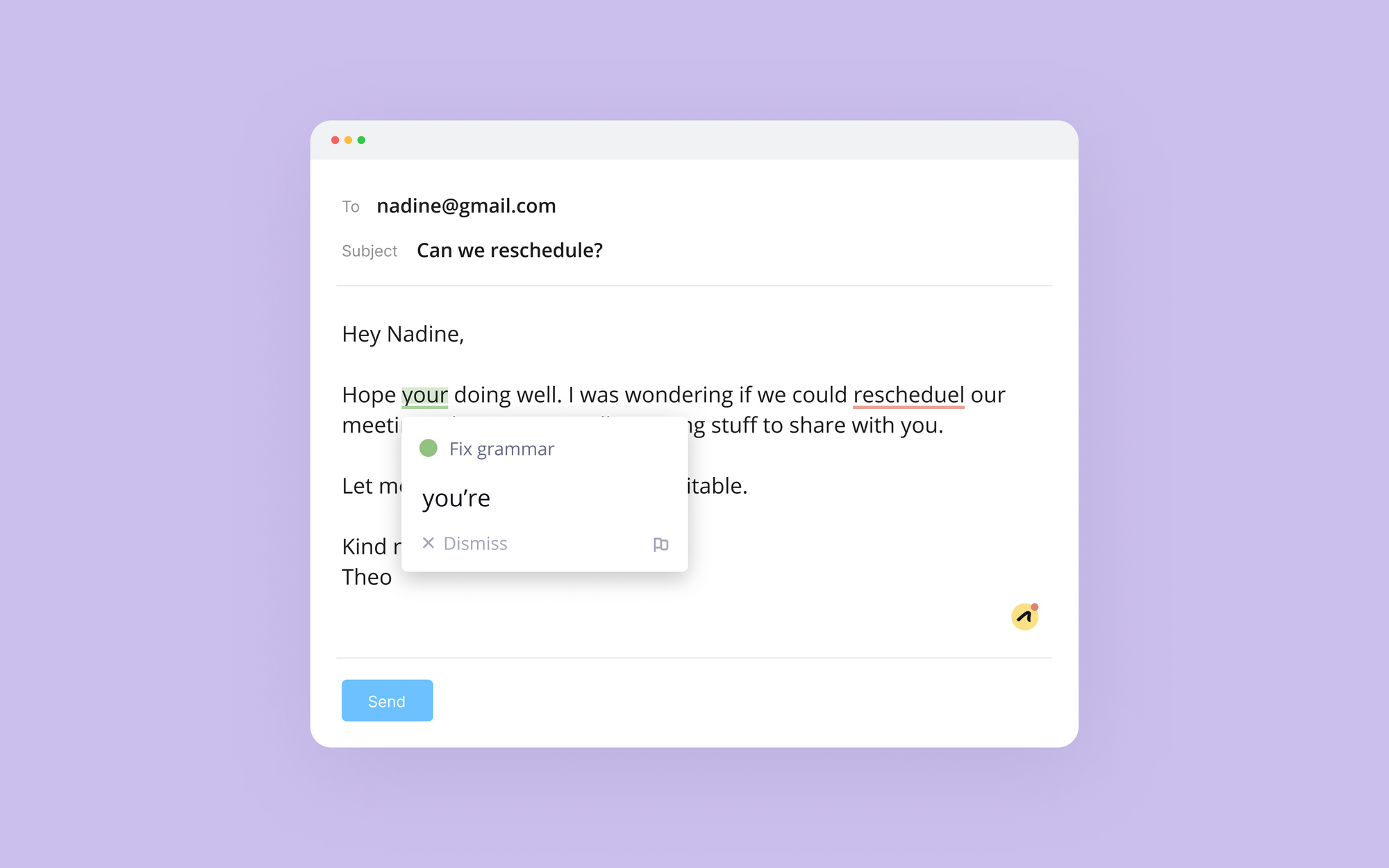
Start by typing in a text field. If Outwrite detects an error, a colored underline will appear. Red indicates a spelling error, while green is for grammar. If you're an Outwrite Pro user, you may also see some blue underlines. Those are our stylistic and structural suggestions.
2. Improve vocabulary
Want to replace a word? Highlight or double-click on it, and choose a better alternative from the list of synonyms.
3. Rewrite sentences (Pro)
Let's say you want to rework an entire sentence. Highlight or double-click on it, click "Rewrite", then choose the option that best suits your writing goal.
4. Track progress
You may notice a green or red circle at the bottom right of your text field. Clicking it will give you access to the Outwrite Editor. This is where you can find your real-time writing statistics, including readability and grade-level scores.
How to disable Outwrite on a specific site
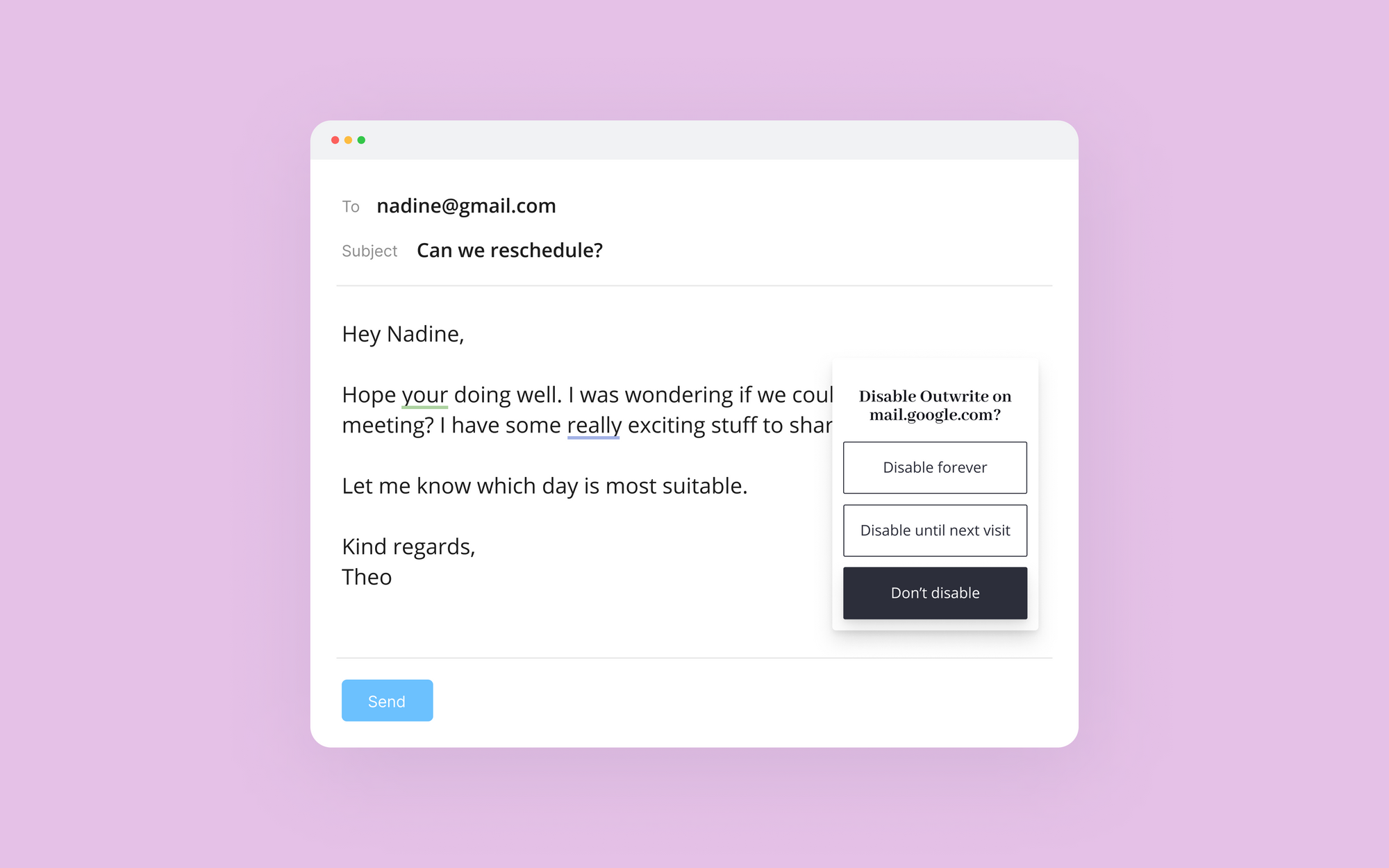
There may be times when you don't want to use Outwrite. If this is the case, click on the Outwrite icon in your toolbar and disable the extension for that particular site. Don't worry - you can turn it back on again at any time.
What websites can I use Outwrite with?
Outwrite's browser extension supports most websites including Gmail, Outlook, Facebook, Twitter, LinkedIn, WordPress, Reddit, and Medium.
If you would like us to support a new site, or have any questions, just contact help@outwrite.com
Frequently Asked Questions
Q: How do I disable Outwrite on specific sites?
A: Click the Outwrite icon in your browser toolbar while on the site you want to exclude, then select the option to disable the extension for that site. You can re-enable it at any time using the same menu.
Q: Which web browsers support Outwrite?
A: Outwrite's browser extension is available for both Chrome and Microsoft Edge, and functions on most websites including Gmail, Outlook, and social platforms like Facebook and LinkedIn.
Q: Is Outwrite's browser extension free to use?
A: Yes, you can install it for free, and get access to features like spell and grammar checking. You will need to upgrade to Outwrite Pro to access our premium features.
Happy writing!